
In today’s competitive digital landscape, every business wants to appear on the first page of Google. But simply publishing content or optimizing pages is not enough—you need reliable data that shows how your website is performing on Google Search. This is where Google Search Console (GSC) becomes one of the most essential free tools for marketers, SEOs, bloggers, and business owners.
Understanding About Google Search Console helps you track search performance, monitor indexing, identify errors, optimize ranking pages, and unlock opportunities you may otherwise miss. Whether you run an eCommerce brand, a service business, or an affiliate site, GSC gives you the insights needed to improve visibility and drive organic traffic.
This complete guide will walk you through everything you need to know—What Google Search Console is, how to set it up, how to access it, how to use reports, how to fix issues, and how to fully optimize your website using this powerful tool.
By the end of this guide, you’ll know exactly how to use Google Search Console like a professional digital marketer.
What is Google Search Console
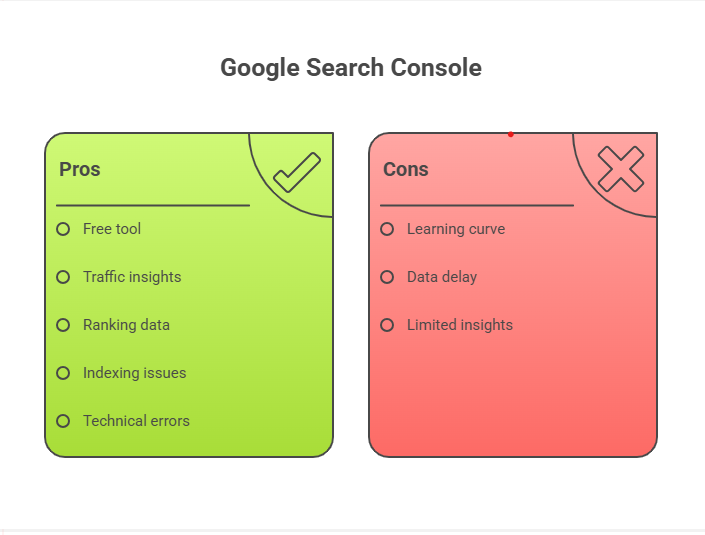
Google Search Console is a free tool provided by Google that helps website owners understand how their site performs on Google Search. It shows search queries, page indexing status, clicks, impressions, positions, and technical issues that can affect rankings.
In simple words:
GSC acts like the “health report” of your website in Google Search.
What Google Search Console Helps You Do
- Track organic traffic performance
- See rankings and search queries
- Identify indexing issues
- Fix crawling errors
- Submit sitemaps
- Analyze backlinks
- Check mobile usability
- Monitor Core Web Vitals
- Understand rich results and schema issues
According to Google’s official documentation (authoritative source), Search Console is a must-use tool for every business—whether new or established.
For marketing professionals, the tool is indispensable as it shows what’s working and what needs improvement in your SEO strategy.
You can also follow more SEO guides on our kkfreelancer Blog Page where we publish in-depth digital marketing tutorials.
Why Google Search Console Matters for Your Business
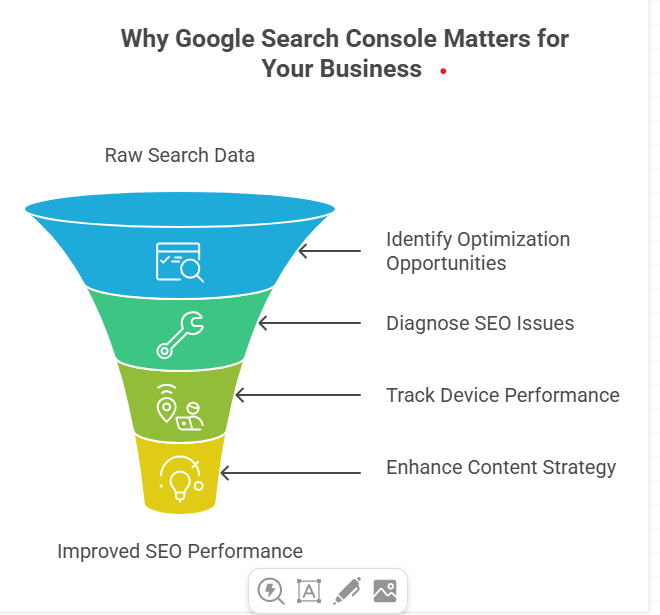
Organic search is still the highest-converting marketing channel. But without the right insights, you’re simply guessing what your audience is searching for.
Key reasons Google Search Console is important:
1. Helps You Boost Rankings
You can identify pages with high impressions but low clicks—perfect for optimization.
2. Shows Real Data From Google
This removes guesswork. You get accurate numbers directly from Google Search.
3. Helps Diagnose SEO Issues
You can quickly detect:
- 404 issues
- Server errors
- Mobile usability problems
- Indexing errors
- Slow loading pages
4. Tracks Device-Wise Performance
Analyze desktop, mobile, tablet traffic patterns.
5. Enhances Content Strategy
Knowing what users search helps create targeted content.
6. Completely FREE
Unlike paid SEO tools, GSC is free yet extremely powerful.
How to Set Up Google Search Console
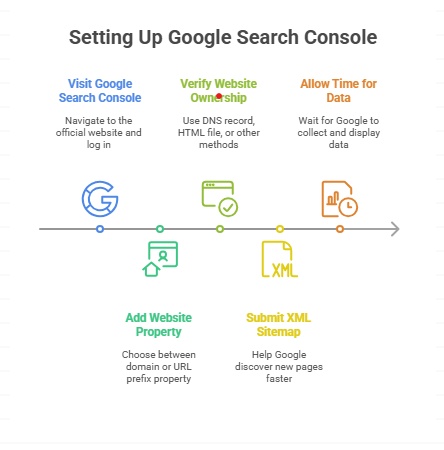
Setting up GSC is simple and takes only a few minutes. This section also covers your required secondary keyword:
➡️ “How to set up Google Search Console”
Here’s the step-by-step setup guide:
Step 1: Visit Google Search Console
Go to the official Google Search Console website and log in with your Gmail account.
Step 2: Add Your Website Property
Google gives you two options:
1. Domain Property (Recommended)
Tracks your entire domain including:
- www / non-www
- HTTP / HTTPS
- Subdomains
2. URL Prefix Property
Tracks only one specific URL version.
Step 3: Verify Your Website Ownership
Google provides several verification methods:
- DNS record (preferred for domain property)
- HTML file upload
- HTML meta tag
- Google Analytics
- Google Tag Manager
After verification, Google begins collecting data.
Step 4: Submit Your XML Sitemap
Go to:
📌 Indexing → Sitemaps → Add sitemap
Your typical sitemap URL is:
https://yourdomain.com/sitemap.xml
Submitting the sitemap helps Google discover new pages faster.
Step 5: Allow 24–48 Hours for Data
Google starts showing clicks, impressions, and keyword data within a day or two.
How to Access Google Search Console
Your second secondary keyword appears naturally here:
➡️ “How to access Google Search Console”
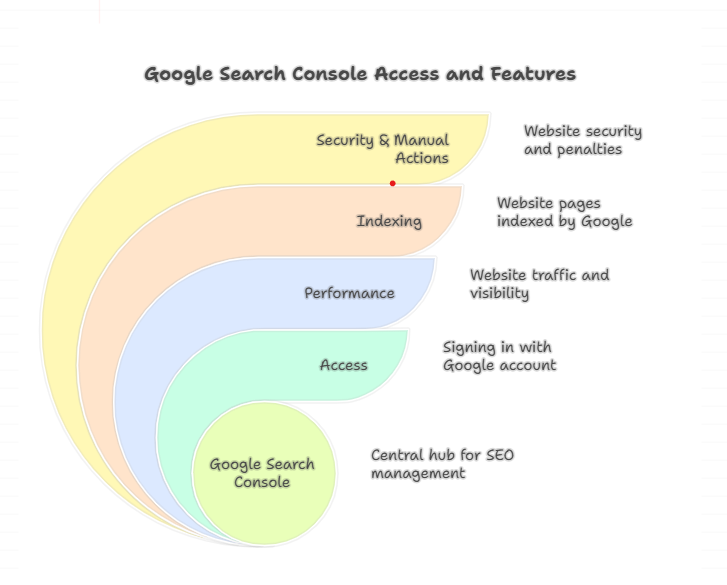
You can access GSC using any device by visiting the official Search Console URL and signing in with your Google account. Once inside, you can explore reports such as:
- Performance
- URL inspection
- Indexing
- Sitemaps
- Experience
- Enhancements
- Security & Manual Actions
Bookmark the portal link for faster access during daily SEO audits.
Google Search Console Dashboard Overview
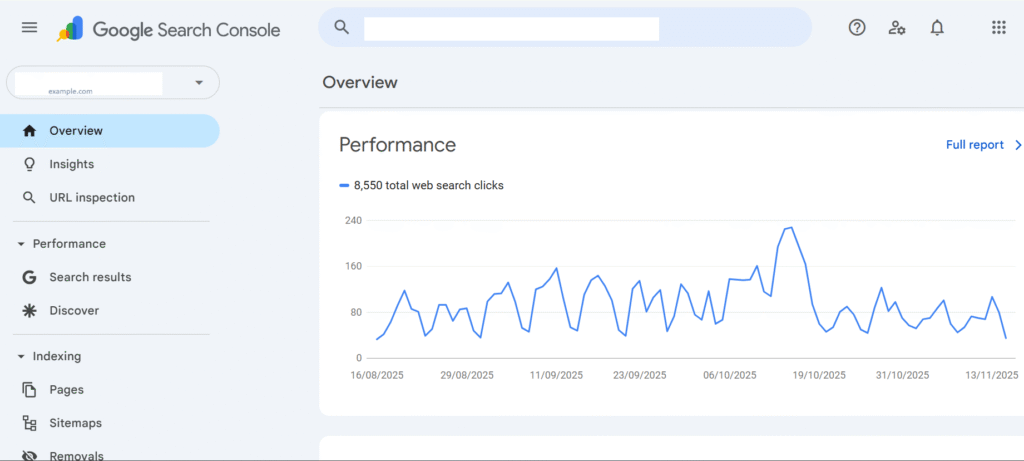
Let’s explore each important section inside GSC and what it helps you achieve.
1. Performance Report
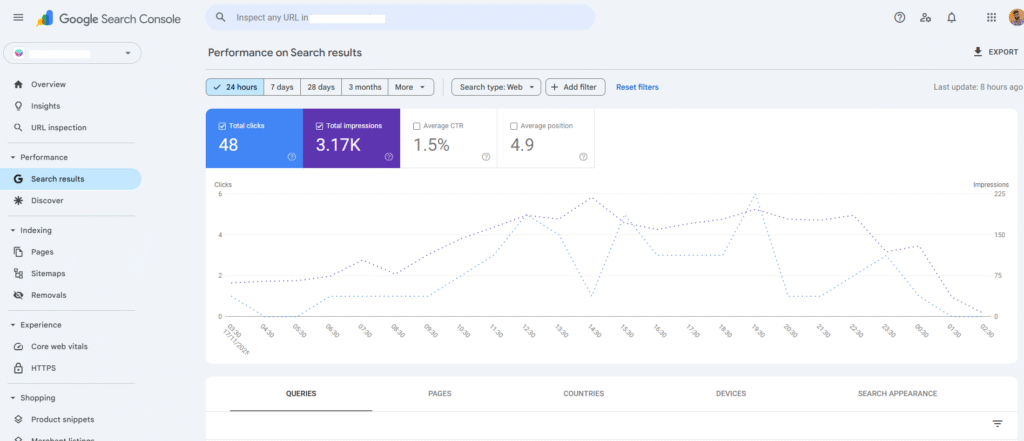
This is the heart of Google Search Console.
It shows:
- Total clicks
- Impressions
- CTR (Click-Through Rate)
- Average position
- Keywords generating traffic
- Device performance
- Country-wise data
How to Use It Effectively
- Filter by date (last 28 days, 3 months, 12 months).
- Sort pages by highest impressions to find ranking opportunities.
- Check keywords where your position is between 8–20 and optimize for them.
Professional Tip:
Revamping these pages can help you grow traffic up to 40–60% in less than 60 days.
2. URL Inspection Tool
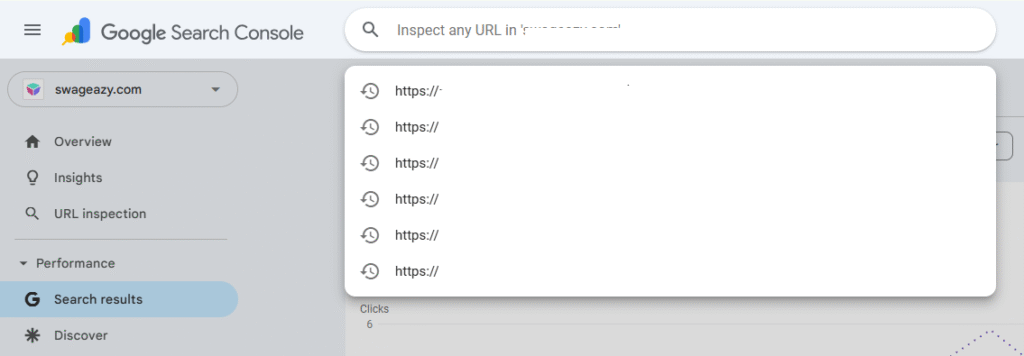
Used to check the status of a specific page.
You can see:
- Whether Google indexed the page
- Crawl issues
- Canonical versions
- Coverage status
Use Cases
- After publishing new content
- After fixing issues
- After updating old content
Click “Request Indexing” to ask Google to re-crawl your updated page.
3. Page Indexing Report
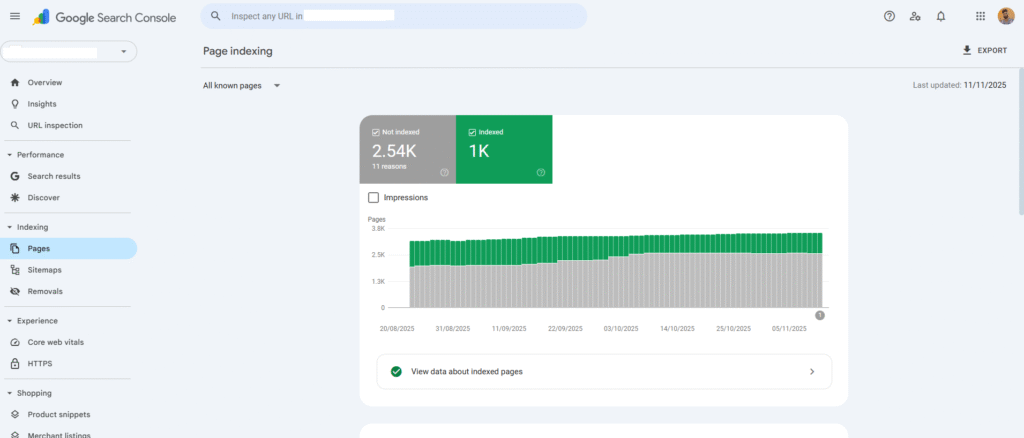
This section shows all indexing errors.
Common issues include:
- Crawled – currently not indexed
- Alternate page with canonical tag
- Duplicate content issues
- Server errors
- Redirect errors
Fix these issues promptly to improve visibility.
4. Sitemaps Report
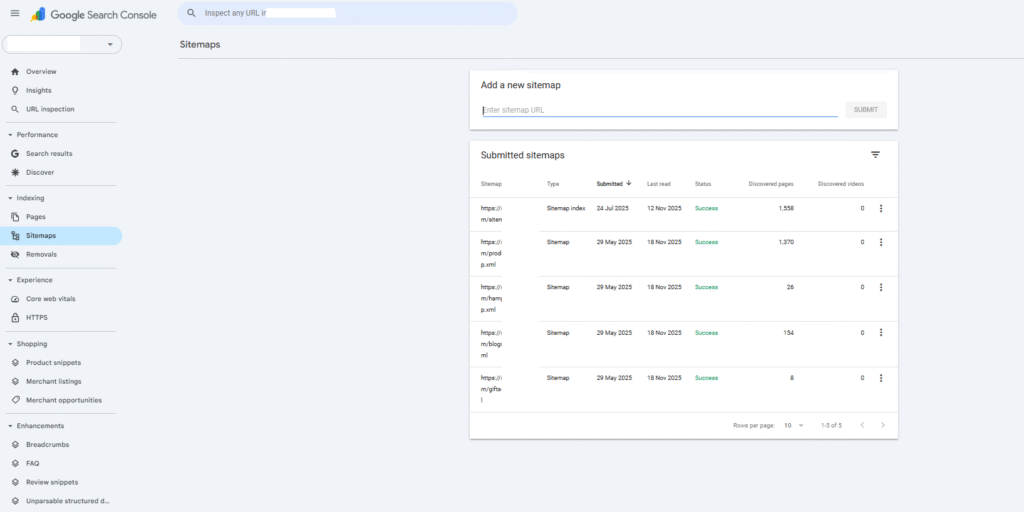
Helps Google discover your website’s important pages.
Tips:
- Always ensure your sitemap is working.
- Keep unwanted URLs (thank-you pages, filter URLs, admin URLs) out of the sitemap.
5. Page Experience Reports
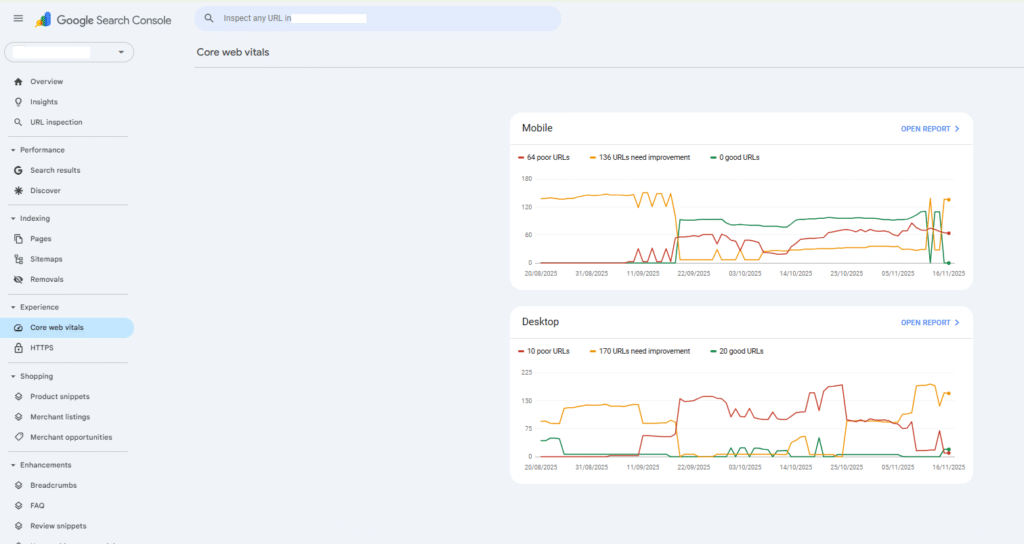
Google measures your website’s user experience quality based on:
- Core Web Vitals
- Mobile usability
- HTTPS
Optimizing these areas improves rankings significantly.
6. Enhancements
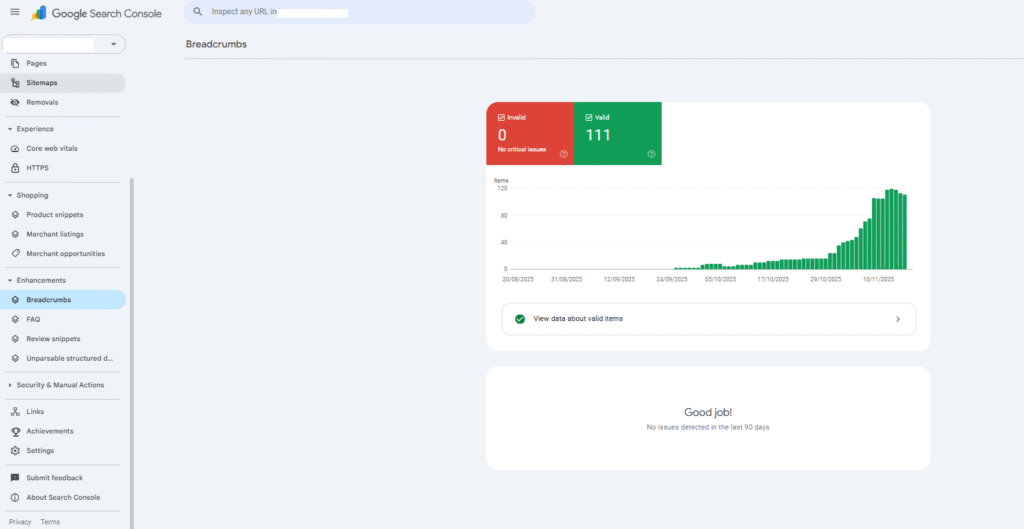
Shows schema markup issues such as:
- Breadcrumbs
- FAQs
- Product schema
- Review schema
- Sitelinks searchbox
Use structured data for better visibility.
7. Security & Manual Actions
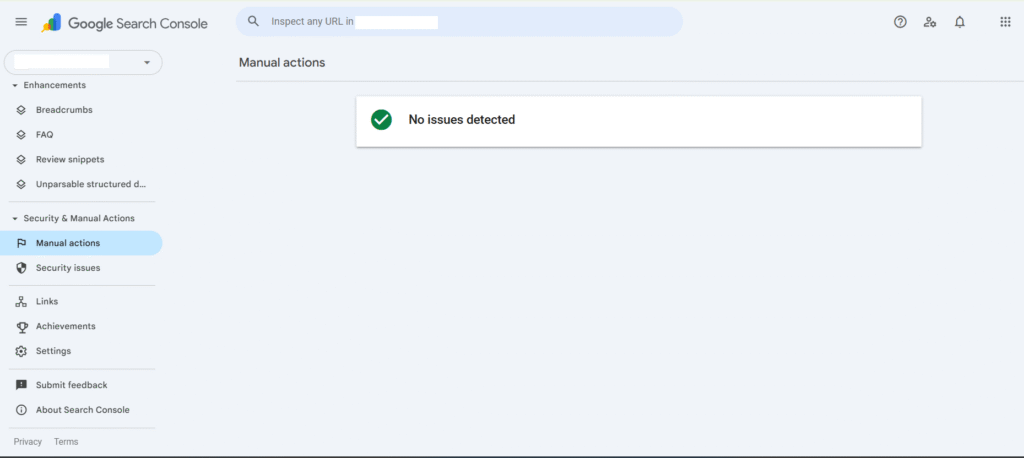
This report shows:
- Manual penalties
- Security issues
- Hacked content warnings
Always address these immediately.
Google Search Console Reports Explained with Examples
Let’s dive deeper into real-world scenarios showing how businesses use GSC.
Example 1: Improving Click-Through Rate
Suppose a page has:
- 50,000 impressions
- 1,000 clicks
- 2% CTR
Actions:
- Rewrite meta title
- Rewrite meta description
- Add schema
- Improve page experience
CTR usually increases by 20–40% within weeks.
Example 2: Ranking Opportunities
If GSC shows a keyword at position 12, update the content:
- Add FAQs
- Add examples
- Improve headers
- Add internal links
- Increase topical depth
Within 30 days, rankings often move to top 5.
Google Search Console vs Google Analytics
| Feature | Google Search Console | Google Analytics |
| Shows keyword data | Yes | No |
| Tracks user behavior | No | Yes |
| Tracks website traffic | Partially | Fully |
| Monitors indexing | Yes | No |
| Monitors crawling | Yes | No |
| Free tool | Yes | Yes |
Both tools work together to give complete SEO insights.
How to Use Google Search Console for SEO Growth
1. Identify Keywords to Target
Sort by impressions to find keywords with high search demand.
2. Improve Pages with Low CTR
Rewrite meta titles, meta descriptions, and add schema markup.
3. Fix Indexing Issues Quickly
Use URL Inspection → Request Indexing.
4. Monitor Mobile Usability
Fix any mobile issues immediately.
5. Improve Core Web Vitals
Use Google PageSpeed Insights to optimize speed.
6. Track Backlinks
GSC shows websites linking to you—a key SEO ranking factor.
Common Google Search Console Errors & Their Solutions
1. Crawled – Currently Not Indexed
Cause: low-quality content
Fix: improve depth & internal links
2. Server Error (5xx)
Cause: hosting downtime
Fix: upgrade hosting
3. Mobile Usability Issues
Cause: small text or clickable elements too close
Fix: improve responsive design
4. Duplicate Content
Fix: use canonical tags properly
Google Search Console Tips from SEO Experts
- Inspect URLs every time you update content
- Use filters to compare date ranges
- Identify top-performing countries
- Track page performance after adding schema
- Analyze device performance for UX improvements
- Always check sitemap regularly
If you want professional SEO implementation, explore our SEO Services at:
👉 https://www.kkfreelancer.in/seo-service/
Conclusion
Google Search Console is one of the most powerful free tools for boosting rankings, driving organic traffic, and improving website performance. Understanding About Google Search Console helps you diagnose issues, analyze keywords, and optimize content strategically. Every business owner, marketer, and digital learner must master this tool to stay ahead of competitors.
If you want expert help with Google Search Console setup, SEO optimization, or complete digital marketing—
👉 Contact kkfreelancer today for professional SEO services designed to grow your business.
FAQs
Yes, GSC is 100% free for all website owners
Typically 24–48 hours after verification.
Yes. It helps identify issues, optimize content, and find ranking opportunities.
Yes. Both tools provide different insights.
Check weekly for performance, errors, and indexing updates.